Sales and receipts. All in one place.

Moja Kasica is a point-of-sale app. Record sales, issue and look up receipts, manage advance payments, products and customers, and follow your reports — in one place. It runs in the browser and connects to a fiscal processor.

App preview — demo dataPOS sale: the product catalogue on the left, the cart and the amount due on the right.

Screens

These are screenshots of the real app. The data is made up, and the receipts are test receipts, not fiscal ones. Pick a screen and open the image to see it larger.

Overview

App preview — demo data

The day at a glance

The start screen sums up turnover for the chosen period, the latest receipts, payment methods and the state of the connection to the fiscal processor.

  • Total turnover, number of sales, average receipt, refunds and advances received
  • Period: today, yesterday, this week, this month or a custom range
  • Latest receipts with their fiscal status
  • Each payment method’s share of turnover

POS sale

App preview — demo data

Catalogue on the left, cart on the right

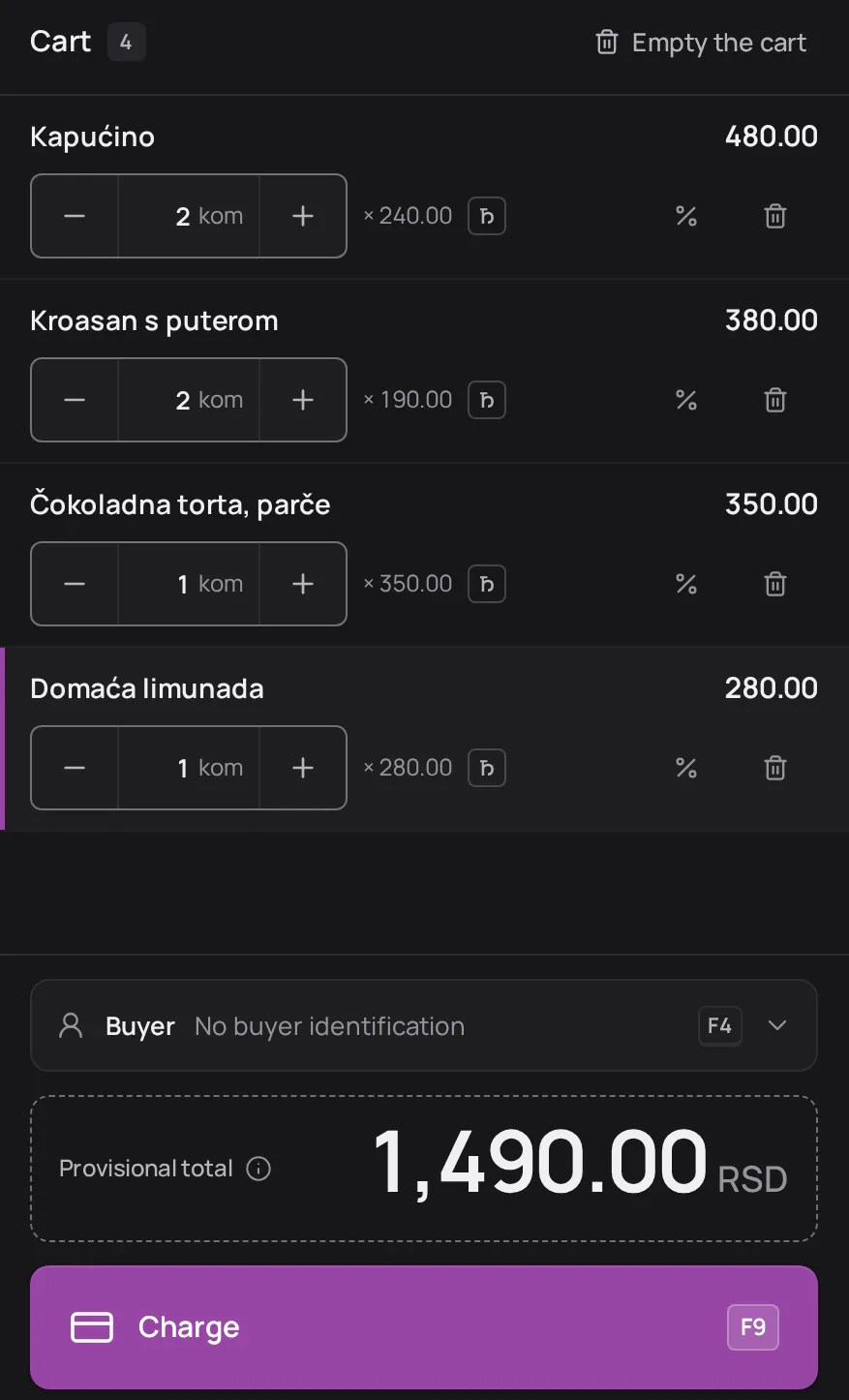
Add a product with a tap, a search or a barcode scanner. The cart always shows the lines, quantities and the amount due.

  • Search by name, code or barcode
  • Quantities, including decimals, and a discount per line
  • Buyer identification when it is needed
  • Keyboard shortcuts for search, buyer and payment

Receipts

App preview — demo data

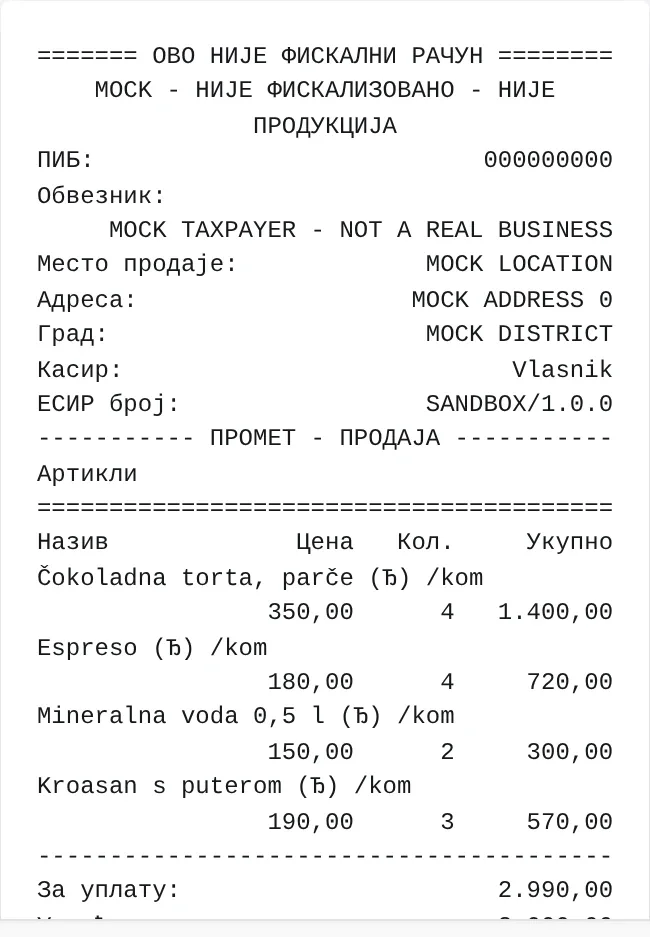
The receipt archive, and each receipt as it prints

Every receipt issued stays in the archive. It opens with the receipt paper, the fiscal data and the actions that are allowed.

  • Search by PFR number, internal number or customer
  • Receipt in Serbian Cyrillic, Latin or English, for 58 mm or 80 mm rolls or A4
  • Refund the whole purchase or part of it, referencing the original receipt
  • An issued receipt is never edited or deleted; a correction is always a new document

Advances

App preview — demo data

Advance payments through to the final sale

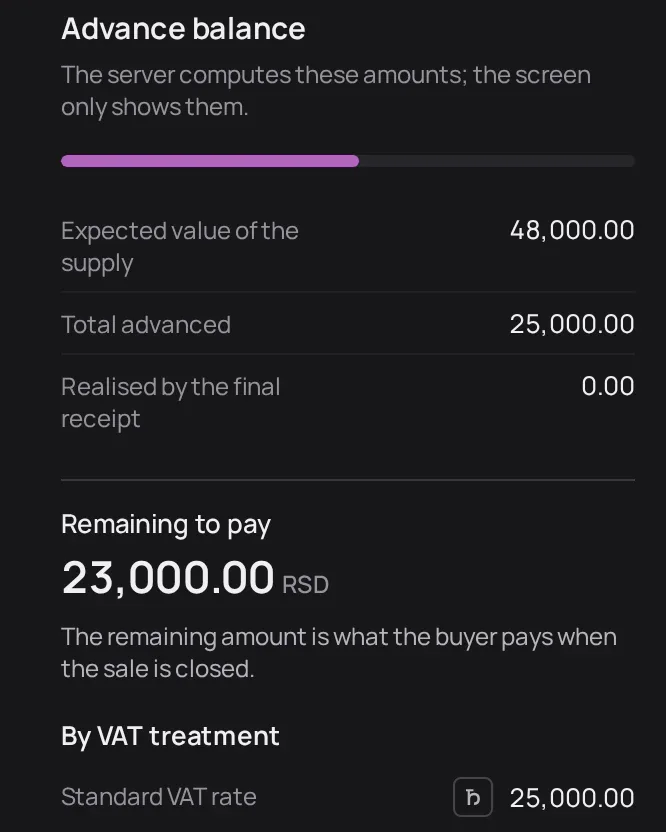
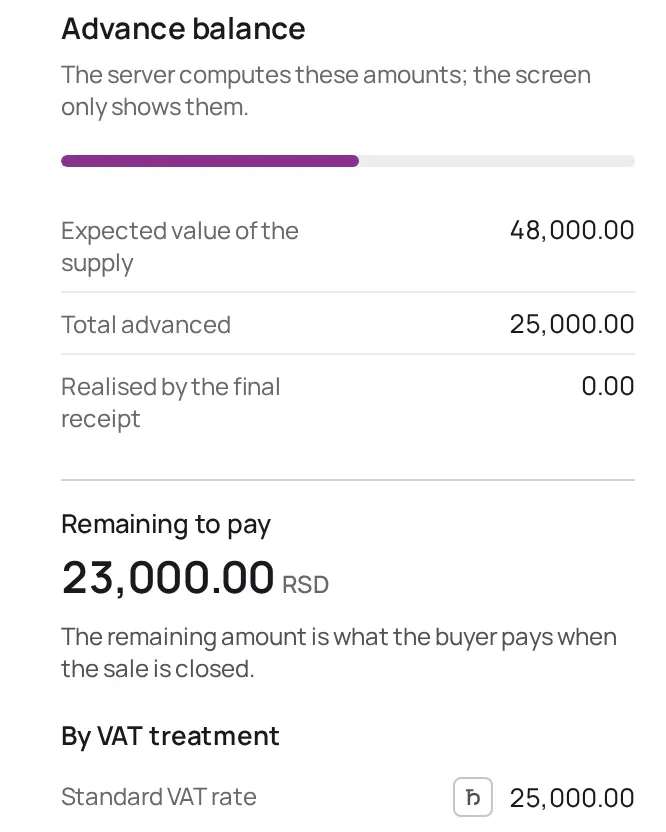
Take several payments for one future delivery. Kasica keeps track of the balance and what is left to pay, and closes the sale in one step.

  • Several advance payments for the same sale
  • Balance, expected total and amount still due
  • A chain of documents the app builds and checks itself
  • A final receipt that takes the advances into account

Products & customers

App preview — demo data

Product catalogue and customer list

Products and services carry the price, unit and tax label that go on the receipt. Customers keep the details used to identify a buyer.

  • Code, barcode (GTIN), unit of measure and tax label
  • Import and export products as a CSV file
  • A price change never alters receipts already issued
  • Companies and individuals, with a tax ID or other identification

Reports

App preview — demo data

Business reports

Reports show turnover for the chosen period by payment method, product, refunds and advances.

  • Turnover, refunds and net turnover
  • Turnover by payment method and by product
  • Advances and failed fiscalisations
  • Export the table on screen as CSV

Features

What Kasica does day to day, and where you see it in the app.

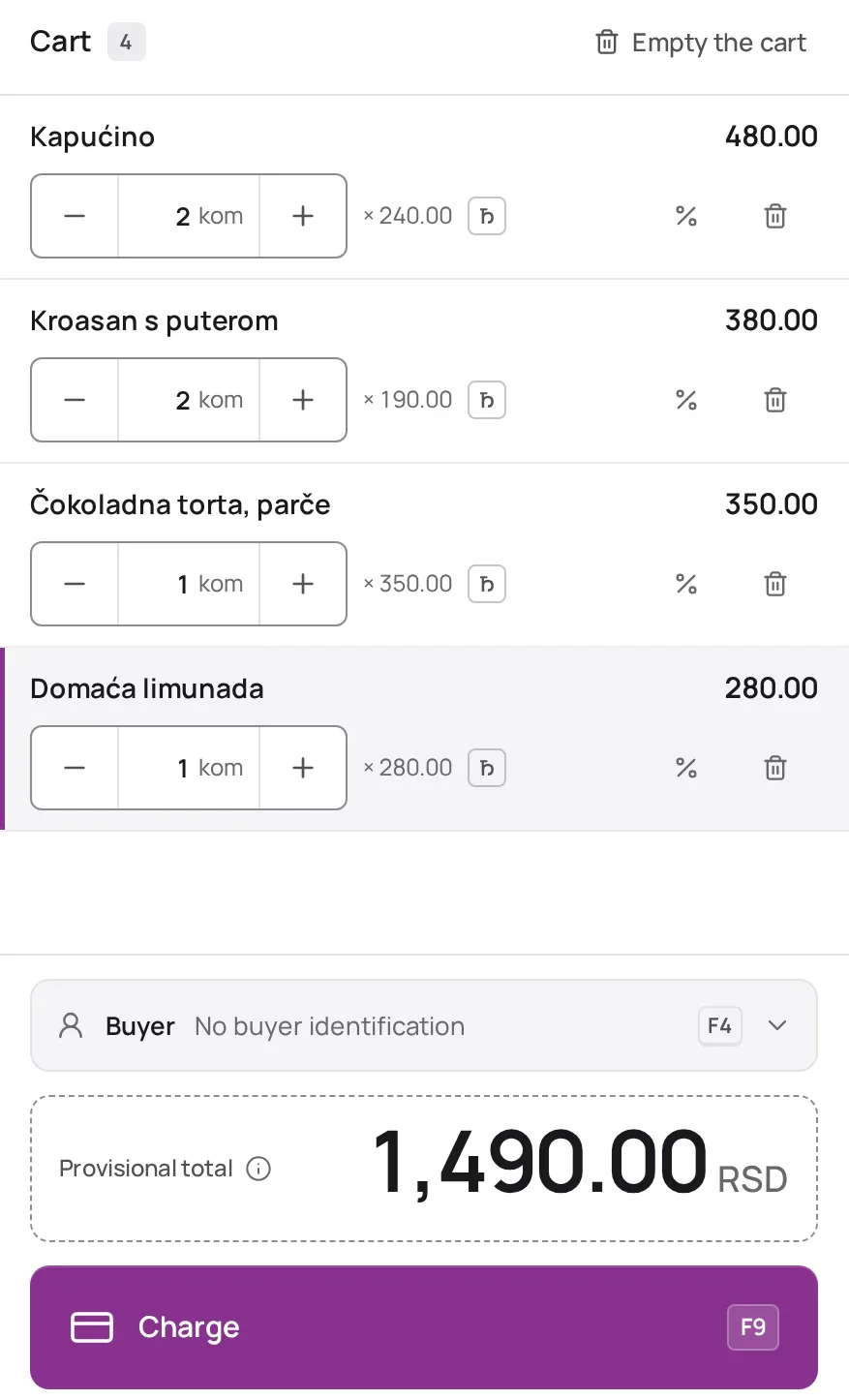
The POS cart with four lines, the buyer field and the Charge button.The POS cart with four lines, the buyer field and the Charge button.
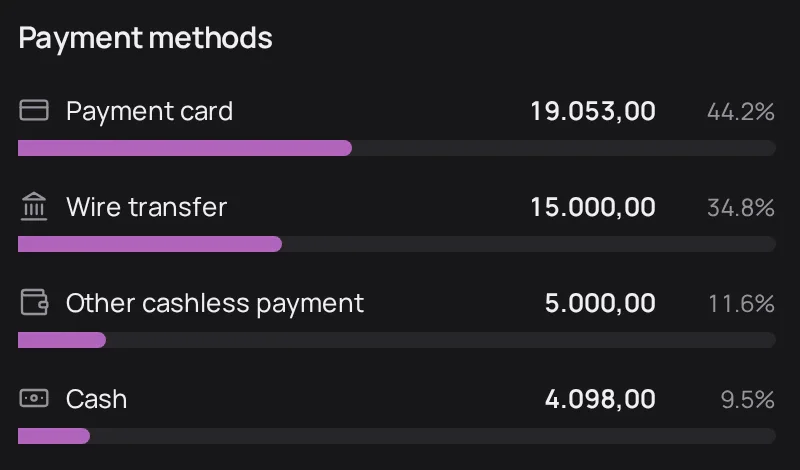
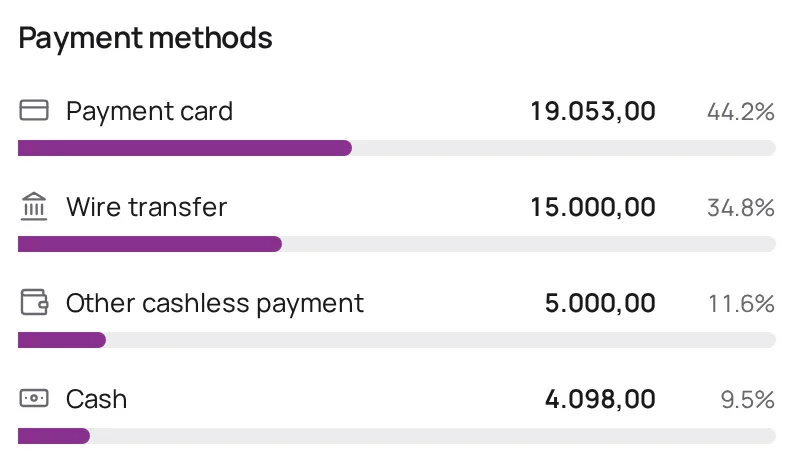
Payment methods on the Overview screen, with amounts and share of turnover.Payment methods on the Overview screen, with amounts and share of turnover.

Selling at the till and taking payment

The cart stays easy to read: name, quantity, price and total for each line, with the amount due underneath. One receipt can be paid in several ways.

  • Cash, payment card, check, wire transfer, voucher, instant payment and other cashless payment
  • Split payment, for example part by card and part in cash
  • Change calculated when the customer pays cash
See the screen: POS sale
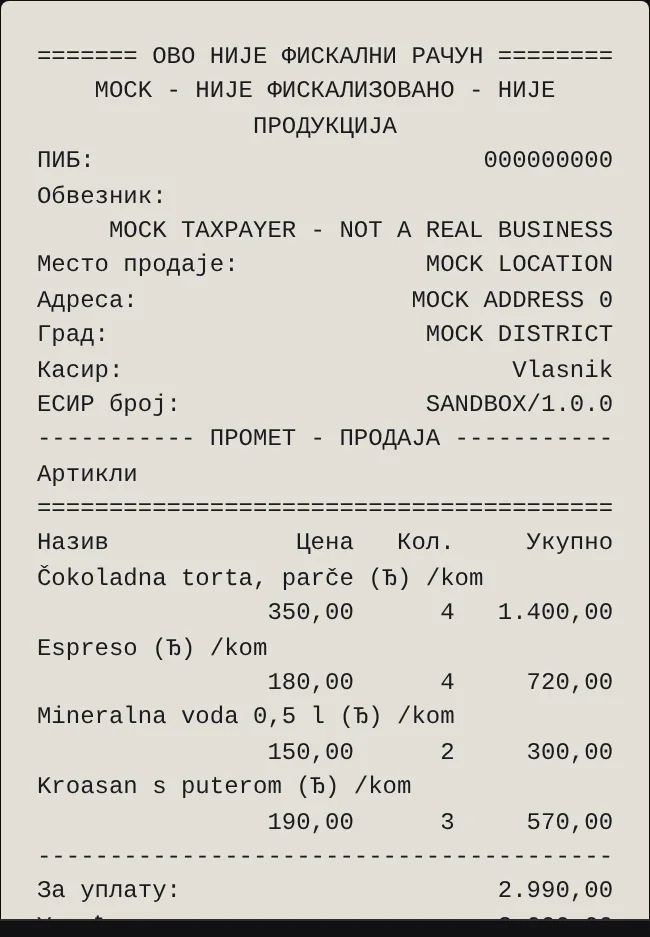
A test receipt printed in Serbian Cyrillic, headed “This is not a fiscal receipt”, with its lines and the amount due.A test receipt printed in Serbian Cyrillic, headed “This is not a fiscal receipt”, with its lines and the amount due.

Receipts, printing and refunds

On screen, a receipt looks exactly as it will print. Search the archive by receipt number or customer; a refund always references the original receipt.

  • Layouts for 58 mm and 80 mm thermal rolls and for A4
  • Serbian Cyrillic, Latin or English on paper
  • Full or partial refunds, receipt copies and cancelling a receipt issued by mistake
See the screen: Receipts
Advance balance: expected total 48,000.00, paid 25,000.00 and 23,000.00 RSD remaining.Advance balance: expected total 48,000.00, paid 25,000.00 and 23,000.00 RSD remaining.

Advances and closing the sale

When a customer pays up front, each payment is recorded as an advance. Kasica shows how much has been paid and how much is left, and closes the sale in a single step.

  • Several payments for the same delivery
  • Balance by tax treatment
  • A final receipt that accounts for the advances received
See the screen: Advances
  • Products, prices and customers

    Products and services with codes, barcode, unit of measure and tax label. Import and export via CSV. Customers with the details used for buyer identification.

    See the screen: Products & customers
  • Business reports

    Turnover, payment methods, products, refunds, advances and failed fiscalisations for any period, with CSV export.

    See the screen: Reports
  • Connecting to L-PFR and V-PFR processors

    An L-PFR connects through the Kasica Bridge program on the till computer; a V-PFR uses the taxpayer’s certificate. Tax labels and rates come from the processor. When an outcome is unknown, Kasica does not resend the receipt — it checks with the processor.

    See the screen: Overview

How it works

Three steps from an empty catalogue to an overview of your business.

  1. Set up your products

    Add products and services with price, unit and tax label, or import them from a CSV file. Add the customers you issue receipts to.

  2. Record the sale

    On the POS screen, add lines to the cart, choose how the customer pays and issue the receipt. Record payments made in advance as advances.

  3. Review receipts and reports

    Every receipt is in the archive, ready to search or refund. Reports show turnover by period, payment method and product.

Frequently asked questions

What is Moja Kasica for?

For selling at the till and everything around it: issuing and finding receipts, refunds, advance payments, the product catalogue, the customer list and turnover reports. The app runs in the browser.

Are the screens on this site real?

Yes. They are screenshots of the real app with made-up data, in a test environment. The receipt numbers are test numbers and the receipts are not fiscal.

How are receipts printed?

You see the receipt on screen before printing, for a 58 mm or 80 mm thermal roll or for A4 paper. Printing goes through the browser or through the Kasica Bridge program on the till computer. Write to us about a specific printer.

Does Kasica connect to an L-PFR and a V-PFR?

Kasica supports both: an L-PFR through the Kasica Bridge program, and a V-PFR with the taxpayer’s client certificate. Fiscalisation works only once the processor, the certificate or secure element, and the tax rates are set up correctly.

Is Kasica approved by the Tax Administration?

This site does not present Kasica as an approved ESIR. Write to us for the current approval status.

What happens if the connection to the processor drops while a receipt is being issued?

The cashier always sees one of three states: the receipt is fiscalised, it is not fiscalised, or the outcome is unknown. In the third case Kasica does not resend the receipt or ask for payment again; it checks with the processor what was issued.

How much does it cost, and how do I start?

We do not publish prices or terms of use on this site. Write to us and we will reply.

Does this site collect data about visitors?

No. The site has no cookies and no analytics, and your theme choice is remembered only in your own browser. What you send through the contact form is used only to reply to you.

Contact

Write to us if you would like to see Kasica live, or have a question about fiscal processors or about working with your printer.

Contact us directly

Location
Bor, Serbia — we work with clients across Serbia

The button opens your email app. Nothing is sent until you send it from there.

Send us a message

We reply to this address or number.

We use what you send through this form only to reply to your enquiry.